
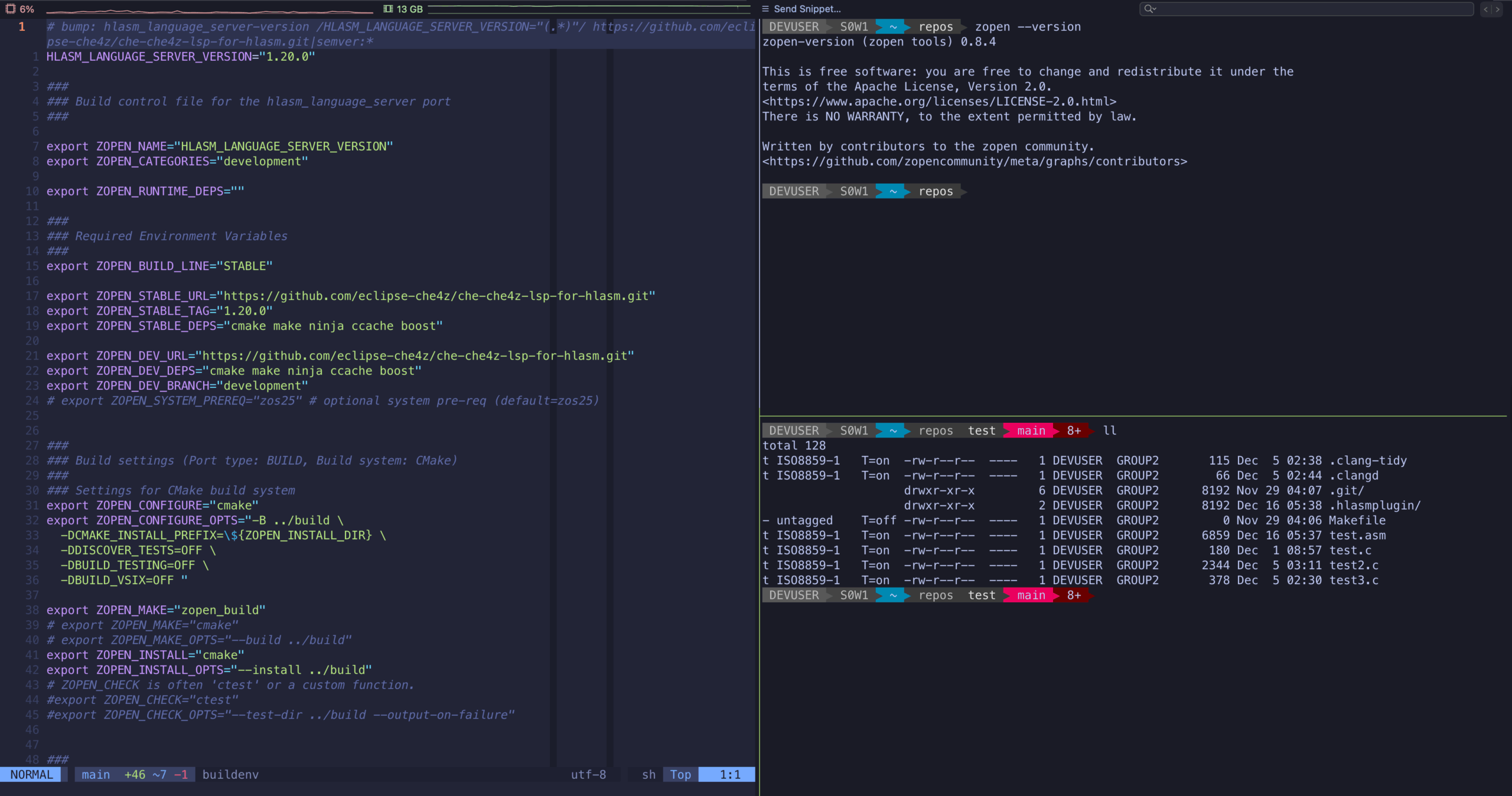
In my Neovim article, I mentioned a tool named tmux. Let’s have a look.
tmux is essential for remote development, at least for me. SSH connection drops? Long-running jobs? tmux keeps your session running.
This article presents my working tmux configuration, which I use daily at Beta Systems Software AG.
Why tmux?
If you’re working on z/OS via SSH, tmux is a game-changer:
- Persistent sessions – Disconnect and reconnect without losing your work
- Multiple windows – Like browser tabs for your terminal
- Split panes – Editor on the left, compiler output on the right
- Copy mode – Scroll back and copy text with vim keybindings
- Session sharing – Pair programming on the same terminal
Installation
zopen install tmux -yVerify:
tmux -V
# Should show: tmux 3.3a or similarThe Unicode problem
Before we dive into configuration, let’s address the elephant in the room: tmux on z/OS doesn’t display all Unicode characters correctly.
Outside of tmux, everything works fine:
$ echo "⚠️ ❌ ✓"
⚠️ ❌ ✓Inside tmux, some characters disappear:
$ echo "⚠️ ❌ ✓"
✓This affects emoji-style symbols, some warning signs, and Powerline glyphs.
The good news: Many Unicode symbols work perfectly fine. Through testing, I’ve identified which ones are safe to use:
Working symbols:
- ✘ ✗ (crosses)
- ✓ (checkmark)
- ● ○ ◆ ◇ ◌ (circles, diamonds)
- ▶ ▼ ▲ (triangles)
- ┃ (line)
- ➤ ➜ (arrows)
- ✚ • (plus, bullet)
Not working:
- ⚠️ ❌ (warning, cross mark emoji)
- ℹ (info symbol)
- Powerline glyphs (U+E0B0, etc.)
Please just keep this in mind when you’re configuring your prompt and Neovim. In my local Neovim configuration, I’ve updated the symbols to be tmux-compatible.
Powerline prompt
If you use powerline-go for your prompt, you’ll notice the arrow separators break inside tmux. The fix is simple, use compatible mode:
powerline-go -mode compatible ...This replaces the Powerline glyphs with ASCII > characters that work everywhere.
My full powerline-go configuration in ~/.bashrc:
PS1="$(powerline-go \
        -mode compatible \
        -error $ec \
        -jobs $(jobs -p | wc -l) \
        -shell bash \
        -theme default \
        -modules "user,host,cwd,perms,git,jobs,exit" \
        -cwd-mode fancy \
        -cwd-max-depth 4 \
        -truncate-segment-width 20 \
)"The configuration
Create ~/.tmux.conf:
# Terminal
set -g default-terminal "xterm-256color"

# Prefix: Ctrl-a instead of Ctrl-b
unbind C-b
set -g prefix C-a
bind C-a send-prefix

# Start windows and panes at 1, not 0
set -g base-index 1
setw -g pane-base-index 1

# Renumber windows when one is closed
set -g renumber-windows on

# More history
set -g history-limit 10000

# Faster escape (important for Neovim)
set -sg escape-time 10

# Mouse support
set -g mouse on

# Simple splits
bind | split-window -h
bind - split-window -v
unbind '"'
unbind %

# Pane navigation (vim-style)
bind h select-pane -L
bind j select-pane -D
bind k select-pane -U
bind l select-pane -R

# Resize panes
bind -r H resize-pane -L 5
bind -r J resize-pane -D 5
bind -r K resize-pane -U 5
bind -r L resize-pane -R 5

# Statusbar
set -g status-position bottom
set -g status-style "bg=#1a1b26,fg=#a9b1d6"
set -g status-left "#[fg=#7aa2f7,bold] #S "
set -g status-right "#[fg=#a9b1d6] %H:%M "
set -g status-left-length 20
set -g status-right-length 20

# Window tabs
setw -g window-status-format "#[fg=#565f89] #I:#W "
setw -g window-status-current-format "#[fg=#7aa2f7,bold] #I:#W "

# Copy mode (vi-style)
setw -g mode-keys vi
bind Escape copy-mode
bind -T copy-mode-vi v send -X begin-selection
bind -T copy-mode-vi y send -X copy-selection-and-cancel
bind -T copy-mode-vi Escape send -X cancel

# Reload config
bind r source-file ~/.tmux.conf \; display "Config reloaded!"

# Kill pane without confirmation
bind x kill-pane

# Focus events (for Neovim autoread)
set -g focus-events onLet me explain each section.
Terminal settings
set -g default-terminal "xterm-256color"Enables 256 color support. Make sure your $TERM is also set to xterm-256color before starting tmux.
Prefix key
unbind C-b
set -g prefix C-a
bind C-a send-prefixThe default Ctrl-b is awkward. Ctrl-a (like GNU screen) is more ergonomic. The last line lets you send an actual Ctrl-a to applications by pressing it twice.
Window and pane numbering
set -g base-index 1
setw -g pane-base-index 1
set -g renumber-windows onStart counting at 1 instead of 0. The 1 key is easier to reach than 0. When you close a window, the others get renumbered automatically.
Neovim integration
set -sg escape-time 10
set -g focus-events onescape-time reduces the delay after pressing Escape. This is important for Neovim’s mode switching. focus-events lets Neovim detect when you switch panes, triggering autoread for changed files.
Intuitive splits
bind | split-window -h
bind - split-window -v
unbind '"'
unbind %| for vertical split (side by side) and - for horizontal split (stacked). Much more intuitive than the defaults (" and %).
Note: On z/OS, #{pane_current_path} doesn’t work, so new panes open in your home directory instead of the current directory. This is a known limitation.
Vim-style navigation
bind h select-pane -L
bind j select-pane -D
bind k select-pane -U
bind l select-pane -R

bind -r H resize-pane -L 5
bind -r J resize-pane -D 5
bind -r K resize-pane -U 5
bind -r L resize-pane -R 5Navigate between panes with Ctrl-a h/j/k/l (lowercase). Resize panes with Ctrl-a H/J/K/L (uppercase). The -r flag makes resize repeatable. Hold the key to keep resizing.
Statusbar
set -g status-position bottom
set -g status-style "bg=#1a1b26,fg=#a9b1d6"
set -g status-left "#[fg=#7aa2f7,bold] #S "
set -g status-right "#[fg=#a9b1d6] %H:%M "

setw -g window-status-format "#[fg=#565f89] #I:#W "
setw -g window-status-current-format "#[fg=#7aa2f7,bold] #I:#W "A clean statusbar using Tokyo Night colors (matching my Neovim theme). Shows session name on the left, time on the right, and window list in the center. Current window is highlighted in blue.
Vi copy mode
setw -g mode-keys vi
bind Escape copy-mode
bind -T copy-mode-vi v send -X begin-selection
bind -T copy-mode-vi y send -X copy-selection-and-cancel
bind -T copy-mode-vi Escape send -X cancelEnter copy mode with Ctrl-a Escape. Navigate with vim keys (h/j/k/l), start selection with v, copy with y. Paste with Ctrl-a ].
Convenience bindings
bind r source-file ~/.tmux.conf \; display "Config reloaded!"
bind x kill-paneCtrl-a r reloads the config without restarting tmux. Ctrl-a x closes a pane without the “are you sure?” prompt.
Quick reference
Session management:
tmux– Start new sessiontmux new -s name– Start named sessiontmux ls– List sessionstmux attach -t name– Attach to sessionCtrl-a d– Detach from session
Windows:
Ctrl-a c– New windowCtrl-a n– Next windowCtrl-a p– Previous windowCtrl-a 1-9– Switch to windowCtrl-a ,– Rename window
Panes:
Ctrl-a |– Vertical splitCtrl-a -– Horizontal splitCtrl-a h/j/k/l– Navigate panesCtrl-a H/J/K/L– Resize panesCtrl-a x– Close paneCtrl-a z– Zoom pane (toggle fullscreen)
Copy mode:
Ctrl-a Escape– Enter copy modev– Start selectiony– Copy and exitEscape– Exit copy modeCtrl-a ]– Paste
Other:
Ctrl-a r– Reload configCtrl-a ?– Show all keybindings
z/OS specific notes
#{pane_current_path}doesn’t work. New panes open in $HOME- Some Unicode characters don’t display (see list above)
- Use
powerline-go -mode compatiblefor prompts - If tmux crashes, clean up with
rm -rf /tmp/tmux-* - Ensure
TERM=xterm-256coloris set before starting tmux
Key takeaways
- tmux is essential for persistent SSH sessions
- Some Unicode symbols work, some don’t. Test before using
- Vim-style keybindings make navigation intuitive
- The config is minimal but complete for daily work
Combined with Neovim, this gives you a solid, persistent development environment on z/OS.
Related:
- Setting up a modern Unix development environment on z/OS
- Building a Modern Neovim Configuration on z/OS
Questions or feedback? Drop a comment below!